I have had both good and bad fortune lately. I thought things were really looking up when i found this stash of photo paper ridiculously cheap (i won't tell you how much i got it for because you will hate me forever and never read this blog again). I saw an advert that someone was getting rid of some darkroom gear so i message them to see if they had any paper. They said they had a few odds and ends so i took a punt and we arranged a price. When the package arrived my head nearly exploded! Inside was an almost full pack of 8x10 Fotospeed Lith paper, a pack of Oriental Seagull, a few packs of Ilford MGIV RC VC, a pack of Kentmere Fineprint VC, some Ilford MG FB WT in 9.5x12 and 12x16, a pretty full pack of Kentmere Art Document, Some Foma papers in 12x16 and a full pack of 16x20 and some Fotospeed Fotolinen which i haven't been able to find much out about yet. And on top of that they sent me some unused Moersch Easylith! What an absolutely fantastic bundle to get in the post!
Naturally i got into the darkroom as soon as i could and that is when misfortune struck. I decided to do some lith and try out some of these new papers. I have used Fotospeed Lith and Art Document before but i tried some again (after all, everyone loves 9.5x12, right), and i also tried some of the seagull as i believe it is great for lith. Unfortunately none of the prints turned out particularly well. I think i chose the wrong negatives and they came out looking dull. But, on the bright side at least i learned how the papers act in lith so i can know what results to expect next time.
The Nab shot is from my recent trip to the east coat, and the one of the boulder is from an old negative i dug out - i am thinking both of these probably deserve a bit of time trying to get a good fine print out of. I have struggled with the nab shot in the past but i put that down to being in a 'funny mood'. Perhaps another session in the darkroom will reveal if i can make anything of it. The boulder shot has great detail in the sky so i may try and make a moody print out of it with lots of lovely cloud contrast. As for the castle shot, i found that on a recent walk with the dog and it would make a great print except for the face that the development messed up. I'm not sure if you can make it out but there are loads of white dots all over the print. For some reason i rated Ilford Pan F+ at 25iso and in Rodinal that doesn't work out too well. Looks like i will have to return there with some FP4+ and re-shoot.
I haven't really done much else lately. I have been toying with doing some zone system testing to determine the best ISO and development times for my setup. It is something i should have done ages ago but, as you should know by now, i am somewhat lazy and it feels like i'm wasting film (even though i know i'm not). No doubt i will write a tutorial all about it (if it is successful). I really do need to get better at getting work done and getting this blog updated more regularly.
Showing posts with label paper. Show all posts
Wednesday, 30 July 2014
Monday, 14 July 2014
The Power of Selenium
I've spoken many times on this blog of how much i enjoy working a negative until i get the final print that i want. I love working out the dodging and burning for different areas of the print and thinking about the toning i want to do to complete it. That being said, this print was an absolute killer. Once again it is from my recent holiday away to the eats cast of England to enjoy the pleasant life of a fishing village for a week. I have been here many times before and fancied some new spots to shoot so i had a quick look around online before i headed out. A little bit of research revealed a somewhat hidden bay on the coast complete with rock shelves and nabs (a nab is an outcrop of rock which the sea has not eroded - think stack). Perfect! We ended up going there for a day midweek and had a fantastic time walking the dog and relaxing on he sand and rocks. Of course, i had my Bronica kit with me and was going a bit trigger happy. I took this shot low to the ground with a nice shapely rock in the foreground and a distant nab and cliff in the background. The sky seemed good so marvelous, i could burn that in as much as need be upon my return to the darkroom.
After i developed etc i setup a flat print (after determining the best overall exposure using split grade test strips) i got a flat print exposure. And it looked rubbish. So, off i went exploring my dodging and burning options - sheet after sheet after sheet after sheet of paper was used (i was using Slavich Unibrom for it's cold tone and nice heavy weight). I got a print i was semi happy with and decided to tone (after a wash of course). I copper toned for a short period then put it into selenium - after a few minutes large white spots started to appear (this is where we learn to selenium tone before copper) so i scrapped it, deciding it didn't look right anyway.
No amount of dodging and burning that i did made the print look right. I wanted something dark and i just wasn't getting it. Perhaps i'm just not at the skill level to do that kind of print yet - hopefully one day i will be. It's prints like these that really test me!
After hours of trying and eventually running out of Unibrom i knew it wasn't happening - i just couldn't get any "pop" out of the print. I decided to clear my mind and approach it from a lith point of view. Sometimes, if i'm honest, lith feels like a bit of a cop-out. I suppose that's because i'm not spending hours configuring dodging and burning charts, i'm just picking an exposure and slapping some paper in a tray. There is more skill to it than that, and there's nothing wrong with dodging and burning for lith - a fact i had to reassuring myself with.
Now one of mankind's oldest questions - which paper to use. After much deliberation i decided to go for Fotospeed Lith paper as i knew it would give me a dark feel and suitable colouring. So, i picked my exposure and developed until the sky had good detail. After snatching, fixing and washing i was left with this:
Good, i thought, but not quite there. The shadows are a bit...green..! As is usual with my lith prints i like to see how they react to selenium toner. In this instance i chose a dilution of 1:5 as i knew it would give more of a colour change than a weaker ratio. I popped the print into the tray and it went nuclear! The shadows got absolutely obliterated, the sky darkened dramatically and almost all detail was lost in the foreground rock. I felt crushed - all that hard work wasted. I decided to let it dry and think about my next step.
After a few days of moping about and being busy with work i went back to look through my prints and you know what - i decided i liked the final print i got. I was suitably dark and it was moody. It probably isn't going to go down in history as one of my greatest prints but i like it so i decided to leave it there and move on to another negative. But then again - looking at the above photo of my pre-toned print, i'm liking that as well...
One thing we learn - never underestimate the power of selenium!
After i developed etc i setup a flat print (after determining the best overall exposure using split grade test strips) i got a flat print exposure. And it looked rubbish. So, off i went exploring my dodging and burning options - sheet after sheet after sheet after sheet of paper was used (i was using Slavich Unibrom for it's cold tone and nice heavy weight). I got a print i was semi happy with and decided to tone (after a wash of course). I copper toned for a short period then put it into selenium - after a few minutes large white spots started to appear (this is where we learn to selenium tone before copper) so i scrapped it, deciding it didn't look right anyway.
No amount of dodging and burning that i did made the print look right. I wanted something dark and i just wasn't getting it. Perhaps i'm just not at the skill level to do that kind of print yet - hopefully one day i will be. It's prints like these that really test me!
![]() |
| This is the best i got alas. |
Now one of mankind's oldest questions - which paper to use. After much deliberation i decided to go for Fotospeed Lith paper as i knew it would give me a dark feel and suitable colouring. So, i picked my exposure and developed until the sky had good detail. After snatching, fixing and washing i was left with this:
Good, i thought, but not quite there. The shadows are a bit...green..! As is usual with my lith prints i like to see how they react to selenium toner. In this instance i chose a dilution of 1:5 as i knew it would give more of a colour change than a weaker ratio. I popped the print into the tray and it went nuclear! The shadows got absolutely obliterated, the sky darkened dramatically and almost all detail was lost in the foreground rock. I felt crushed - all that hard work wasted. I decided to let it dry and think about my next step.
After a few days of moping about and being busy with work i went back to look through my prints and you know what - i decided i liked the final print i got. I was suitably dark and it was moody. It probably isn't going to go down in history as one of my greatest prints but i like it so i decided to leave it there and move on to another negative. But then again - looking at the above photo of my pre-toned print, i'm liking that as well...
One thing we learn - never underestimate the power of selenium!
Sunday, 13 July 2014
Keep on Rolling
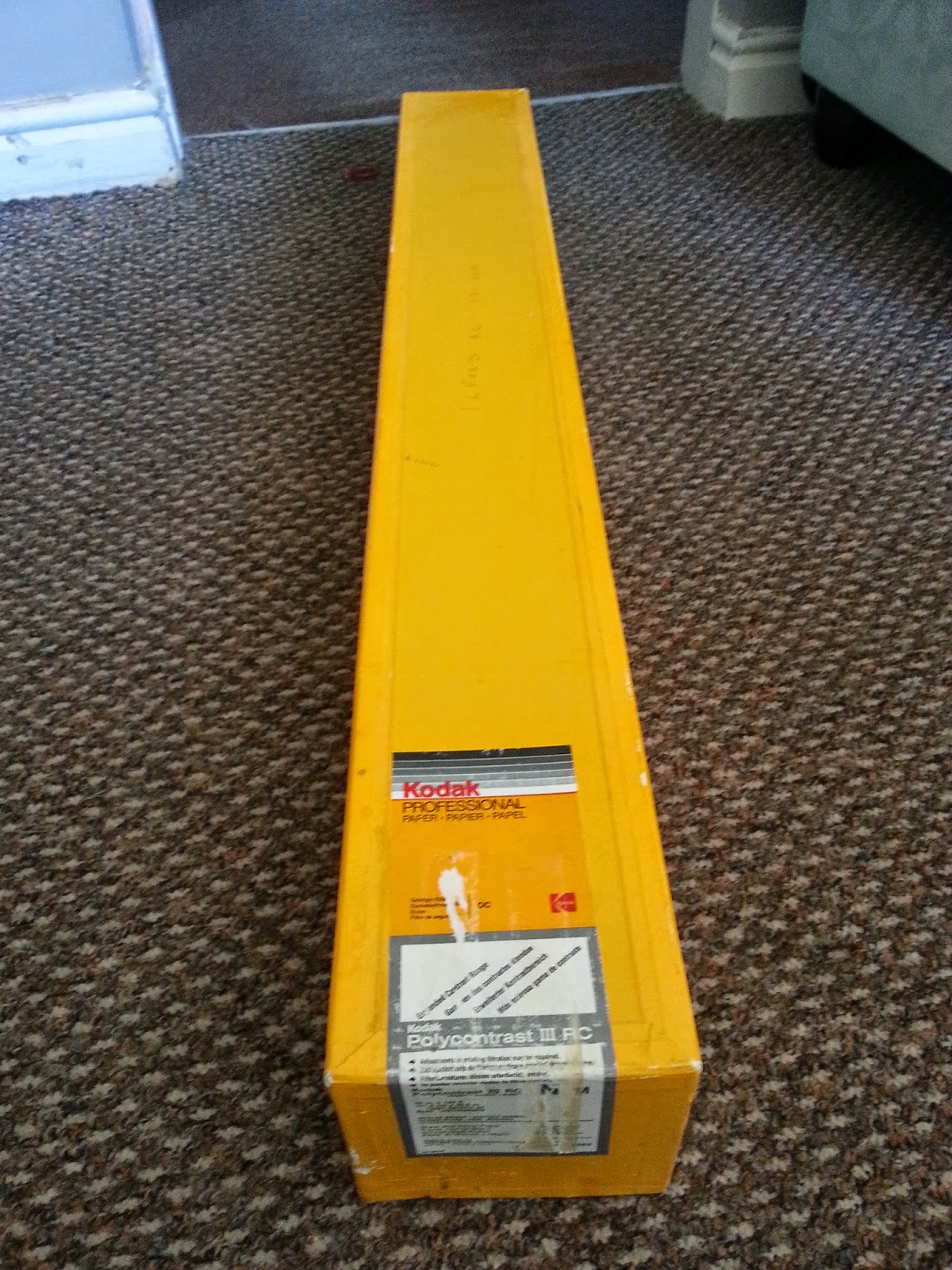
Rather excitingly i have a new paper to use for lith - Kodak Polycontrast III.
I found it on a classified listing and as you can see - it's a big roll! I haven't used paper on a roll before but £10 for this 40inch wide, 100ft long paper seemed too good an opportunity to miss! I'm hoping to get into the shed this weekend (if Jess let's me - the sun makes her want to go out and do things) and give it a try. A quick dip into the internet has revealed that it is indeed lithable so i'm thinking of either buying or making some huge trays and making some mega lith prints! I will, of course, keep you posted on how it goes.
Friday, 31 January 2014
How To: Make a Black & White Print Part II - Making the Print
I’ve finally gotten around to making this article! Sorry it’s taken so
long, i’ve been having a hectic time lately with going on holiday and a death
in the family but now, at last, here’s part two of my black and white printing
articles - making the print.
So, you’ve followed some (if not all) of the advice in Part I and you’ve got together all the gear you need. Now it’s time to make your print. Lets start right at the beginning and take our time...
Step 1 – Prepare the chemicals
You should have three chemicals – developer, stop and fixer (if you’re using fibre paper you should probably have some hypo clearing agent but that’s not overly critical); and you should have three appropriately sized trays. I say appropriately sized because there’s no point printing 16”x 20” if your trays are only 5”x 7”. A good rule of thumb is to use a tray one size bigger than the paper you will be printing on, then you will have lots of room to get your tongs in and pull the paper out.
Lay your trays out side by side on a flat surface and mark then from left to right “dev”, “stop”, and “fix”. Now it’s time to mix your chemicals (preferably with distilled/deionised water but tap water is ok as long as it isn’t too hard). Your chemicals should come with mixing instructions so follow these. For example i use Ilford Multigrade developer which should be mixed 1:9 with water. Some people struggle with understanding ratios so let me try and shine some light onto the matter. 1:9 means mix 1 part chemical to every 9 parts water (making 10 parts in total). In an 8”x 10” tray i like to use 600ml, so 600 ÷ 10 (1+9) = 60. So you need 60 ml of chemical in a 600ml solution. That’s 60ml developer + 540ml water. If the ratio was 1:19 (as it is for the stop bath i use) then that would be 30ml chemical + 570ml water. I hope that makes sense, if not then comment on this article and i’ll try and help you out as best i can.
Once your developer, stop and fixer solutions are all mixed pour them out into the appropriate trays. Get three bottles and label them up ready to pour these solutions into once your darkroom session is finished; you can reuse these chemicals for quite a while before exhaustion.
One thing i should say is to make sure that your chemicals aren't near your
enlarger or where you store your paper. Spillages can happen easily and
you don't want to ruin your paper by splashing it with chemicals. Most
darkrooms have a "dry" side and a "wet" side which are
separate from each other. If you are working in a bedroom its good to put
some plastic sheeting down to protect walls and (in my case) a chest of drawers
from splashes. Silver is a hard stain to remove!
Step 2 – Prepare the negative and load the enlarger
When you’re choosing a negative to make your first print with it is best to choose a well developed negative with good average contrast. The last thing you want to be doing on your first attempt to print is to try and burn through base fog and be dodging and burning all over the place. If it helps try scanning a few frames of your film onto your computer and pick the shot that looks best without too many adjustments. For this tutorial i will be printing this negative which is a picture of my wife on a bike riding through a park.
Once you have chosen your negative
you need to make sure it is as clean as possible. Use a soft brush to
gently wipe both sides of the negative to remove any dust and particles that
may be laying on the surface. Do the same for your enlargers negative
holder (it’s good to get into the habit of doing this regularly). Glass
cleaning wipes are handy for this and i keep a small box in my darkroom
especially for holder cleaning.
Now slot the negative into the enlarger holder emulsion side down. To find the emulsion side hold the negative up to the light – it should be dull. Alternatively, look for the writing on the negative edges - if it’s the right way up you’re looking at the non-emulsion side. Align the negative as straight as you can inside the holder to save problems later.
Load the holder into your enlarger and clamp it (most enlargers have a little handle that keeps the holder in position).
Step
2 – Setup the image
Once the negative is all loaded turn off your room light, put on your safelight and start up your enlarger (to operate my enlarger i have a Paterson timer on which i can set the exposure time. If you are using a colour head make sure all filtration is off. Open up your lens to let the maximum amount of light through – this makes it easier to focus. Make sure you are using a lens of appropriate focal length. A 50mm lens is good for 35mm negatives, and 80mm for 6x6 (see part I of my black & white printing guide).
Now, the distance from the light source in your head to the base determines the size of the image (as does focal length of your lens i.e. if you use an 80mm lens on a 35mm negative the head height of the enlarger to make an 8”x 10” print will differ from that when using a 50mm lens). The greater the distance between the two the larger the image. I am going to be printing 8”x 10” so my head won’t need to be too high up the enlarger column. Some enlargers have a size scale printed on the column – if yours does then set it to 8” x 10”. Mine doesn’t so i have to do it the old fashioned way. I do this by taking my enlarger easel and setting the blades to a few mm under 8”x 8” (my prints are all square as i shoot 6x6 film). I then place the easel under the enlarger and adjust the height of the head until the image covers the 8”x 8” area created by the intersection of the easel blades.
Take your focus finder and place it in the centre of the image cast by the enlarger. Whilst looking through it adjust the fine focus of your enlarger until the grain not the image is in sharp focus. The grain is a constant in your negative but your image is not – it may be blurred and out of focus so by focusing on the grain we are ensuring that maximum sharpness is achieved.
Focusing may well have made the image size to big or small for the print we
wish to make so adjust the head height again and focus. Keep doing this
until your image is sharply focused at the right size. Now lock your head
(normally there’s a screw knob that prevents the head from being able to move).
Move your easel around until the image is aligned as you want it. This is
the point at which you can straighten any wonky horizons. Personally i
don’t like to crop my shots but that’s just my ethic, you can do what you like.
Once this is done you should have a nice sharp image which covers your print
size and slightly overlaps onto your easel blades. At this point turn off
your enlarger, turn on the room light and we’ll look to the paper.
Step 3 – Choosing paper and setting grade
Now it’s time to choose your paper. When you gain a little more experience in printing you will start to see that different papers and finishes suit different types of image. I have a variety of papers in my darkroom that i have on hand depending on the final print i want to achieve. As this is your first print just use whatever paper you have managed to get a hold of. In this example i am using Ilford’s MG IV RC VC (resin coated variable contrast) glossy paper which is a good “industry standard” paper (Kentmere’s VC Select is also a very good and slightly cheaper alternative which i also use).
Once you have settled on a paper it’s time to choose a grade to print at. Paper grade determines the contrast of your print. Grade 00 is very flat, low contrast whilst grade 5 is very high contrast. Most well exposed, well developed negatives with good overall contrast will print nicely at about grade 2. If your negative is of a low contrast scene then printing at a higher grade will help and vice versa. Personally i like my prints to be of a slightly higher contrast so i tend to print my well exposed, well developed (hopefully at least) negatives at grade 3. Of course, your artistic interpretation of the negative can change this "rule". For example, i recently took a shot of a boat on some very still water. I wanted the sky and water to be very light and the boat to be a dark value almost black. If i had printed at grade 3 then the water and sky would have been a light-mid grey and the boat black. By printing at grade 5 however i increased the contrast so the bat stayed black and the sky and water were much lighter. Once you get more experience in printing you can make decisions like this to change the outcome of your final print. Throughout this process and even when shooting the photo you should be thinking about how you want that final print to look. For now though we will choose a middle grade contrast to print at.
Included in your pack of paper should be a data sheet containing processing information for that particular paper. Take it out the pack (with the room light off and safelight on) and seal the paper up again. Go back to room light and look at the sheet (these are also normally available from the paper manufacturers website to download as a PDF files). If you are using multigrade filters and not a colour head you can skip this step and just put the appropriate filtration in the filter carrier beneath your lens. If you’re using a colour head then keep reading this section. Beneath the processing information there should be a section about paper grade (see below):
The first table shows single filter values, the second dual values. Personally i use dual values most of the time but there are times when single values are better (for varying exposure times). So, i want to print this negative at grade 3 and i need to use Kodak settings so i need to dial in 23Y and 56M on my colour head. Look at your head and there should be three dials – yellow, magenta and cyan. You don’t really use cyan in black and white printing so just focus on the yellow and magenta. Dial in the settings you have just taken from your datasheet and turn your enlarger on.
The image cast onto your easel should have changed colour from white to a mix of yellow and magenta. If it hasn’t look at your head – most colour enlargers have a switch which lifts the filters away from the light source. Make sure that the switch is down therefore putting the filters in between the light source and the negative. Stop your lens down to 2 stops away from max. My 80mm lens goes to f22 so i tend to print at f11 (sometimes f16 if i need a longer exposure time). Now you are ready to...
Step 4 – Make a test strip
Make sure your room light is off, your enlarger light is off and your safelight is on. The only source of light in your room should be your safelight (which you should situate at least 1m away from anywhere your paper is going to be to avoid fogging). Open your paper and remove a sheet. Place it emulsion side up beneath the blades of your easel. The emulsion side on RC paper curves away from itself whereas on FB paper it curls towards itself. Think of it as "n" and "u" - if you're using RC paper then when the paper is the right way up it will be "n" shaped, for FB paper it will be "u" shaped. If you are using glossy paper then the emulsion side should be pretty obvious at it will shine, satin and matte finished will be a little trickier. Make sure the paper is aligned and flat in the easel. Set your exposure time on your enlarger timer to 26 seconds and get a piece of card larger than your print. Cover the majority of your paper in the easel with this card but leave a few centimetres free. Now, what’s going to happen is that once we set the enlarger running we will retract the card by a few centimetres every 2 seconds until the countdown reaches zero and the enlarger stops exposing.
Set the enlarger running and watch the timer count down. Every 2 seconds move the card back by a few centimetres and keep going until the enlarger stops exposing. If you have judged it well the last 2 seconds of exposure should be towards the far end of the paper, thus giving you good exposure coverage across the whole print.
Remove your paper from your easel and go to your developing tray (which should be away from any paper storage and your enlarger so as to avoid splashing). Grab a stopwatch/wristwatch (NOT backlit) and as you slide the paper into the developer start it running. Rock the tray immediately to ensure that the chemical covers the whole print. For this paper/developer combination i need to develop for 1 minute at 20oC (paper developing just runs to completion - it doesn't matter if you leave the print in for a few minutes, once the print has reached maximum developing it stops). Ensure that fresh developer keeps moving over the paper by gently rocking the tray back and forth for the duration of the minute. An image should start to appear at around 15 to 20 seconds (in fresh developer) and keep developing. Once you reach 1 minute (developing time will increase if the temperature is lower) remove the paper from the developer using tongs and let it drain for 10 seconds. Then place it into the stop bath for 10 seconds and rock the tray, drain it for 10 seconds and then fix for 30 seconds (these times will vary depending on what chemicals and papers you use – consult the data sheets that come with your equipment and it will tell you what times to use). After fixing place the print in a tray of water, or if you’re lucky enough to have a sink in your darkroom place it straight into a bath of running water. For RC papers washing in running water for around 5 minutes is fine, for FB papers an hour is recommended (if you wash with a hypo clearing agent then this time is halved). Water doesn’t have to be gushing out of the tap, a gentle trickle is fine. If you wash insufficiently then it is possible that as time goes by your print will turn brown due to fixer which was not removed by the wash Personally i have to run out of my darkroom to the bathroom and leave my print washing in the sink whilst i occupy myself elsewhere for a few minutes. Before you go running out of your darkroom however, make sure your package of paper is sealed and packed away before you turn on your room light or you could ruin your whole box of paper.
You should now have a print with varying exposures over it that looks something like this:
This is a test sheet showing various
exposures from 0 seconds to 26 seconds. You may have heard the term test
strip before - test strips are exactly the same but instead of using a whole
sheet you trim a strip off the edge of your paper and expose that as above.
This works out well for people who shoot 6x6 as you can trim and inch or two
off the same sheet you are going to be printing on to make the test strip, thus
saving on paper. For now, though, as this is your first print its best to
use a whole sheet so you can get an idea of how the whole print looks at
different exposures. As your experience grows you can go to test strips
if you choose to.
Now what you need to do (preferably when the test sheet is dry) is analyse which exposure is best to your eye. Look at the whole print and find which exposure gives you the best combination of shadow and highlight detail with good contrast throughout. Personally i like my prints to be slightly on the darker side so i for this print i chose the 26 second exposure. If you don't think any of the exposures are long enough try a test strip from 60 to 30 seconds, or stop your lens down to reduce the amount of light hitting the paper.
Once you have decided on an exposure time turn the room light off and safelight on and repeat the above steps but with a straight print at the exposure time you have chosen (in my case 26 seconds). Develop, stop, fix and wash as before and then leave your print to dry, either hung up or on a rack.
Here’s my print at 26 seconds exposure:
Once dry really look at your print – are you happy with it? Is it too light/dark, is the contrast too high/low? To darken simply choose a longer exposure or use a shorter exposure to lighten. Change the contrast using filtration and see how that effects the print.
It is entirely up to you how your final print will look. We have only scratched the surface of printing in this tutorial (we'll go into more detail in the upcoming parts of my printing guide). There are likely areas of your print that are still too light or dark even though you have a generally good exposure overall. In part IV of my printing tutorials we will discuss fine tuning a print using dodging and burning. Part III, however, wil deal with an alternative printing method - Split Grade Printing. Until then feel free to ask any questions and most of all - happy printing!
So, you’ve followed some (if not all) of the advice in Part I and you’ve got together all the gear you need. Now it’s time to make your print. Lets start right at the beginning and take our time...
Step 1 – Prepare the chemicals
You should have three chemicals – developer, stop and fixer (if you’re using fibre paper you should probably have some hypo clearing agent but that’s not overly critical); and you should have three appropriately sized trays. I say appropriately sized because there’s no point printing 16”x 20” if your trays are only 5”x 7”. A good rule of thumb is to use a tray one size bigger than the paper you will be printing on, then you will have lots of room to get your tongs in and pull the paper out.
Lay your trays out side by side on a flat surface and mark then from left to right “dev”, “stop”, and “fix”. Now it’s time to mix your chemicals (preferably with distilled/deionised water but tap water is ok as long as it isn’t too hard). Your chemicals should come with mixing instructions so follow these. For example i use Ilford Multigrade developer which should be mixed 1:9 with water. Some people struggle with understanding ratios so let me try and shine some light onto the matter. 1:9 means mix 1 part chemical to every 9 parts water (making 10 parts in total). In an 8”x 10” tray i like to use 600ml, so 600 ÷ 10 (1+9) = 60. So you need 60 ml of chemical in a 600ml solution. That’s 60ml developer + 540ml water. If the ratio was 1:19 (as it is for the stop bath i use) then that would be 30ml chemical + 570ml water. I hope that makes sense, if not then comment on this article and i’ll try and help you out as best i can.
Once your developer, stop and fixer solutions are all mixed pour them out into the appropriate trays. Get three bottles and label them up ready to pour these solutions into once your darkroom session is finished; you can reuse these chemicals for quite a while before exhaustion.
Step 2 – Prepare the negative and load the enlarger
When you’re choosing a negative to make your first print with it is best to choose a well developed negative with good average contrast. The last thing you want to be doing on your first attempt to print is to try and burn through base fog and be dodging and burning all over the place. If it helps try scanning a few frames of your film onto your computer and pick the shot that looks best without too many adjustments. For this tutorial i will be printing this negative which is a picture of my wife on a bike riding through a park.
Now slot the negative into the enlarger holder emulsion side down. To find the emulsion side hold the negative up to the light – it should be dull. Alternatively, look for the writing on the negative edges - if it’s the right way up you’re looking at the non-emulsion side. Align the negative as straight as you can inside the holder to save problems later.
Load the holder into your enlarger and clamp it (most enlargers have a little handle that keeps the holder in position).
Once the negative is all loaded turn off your room light, put on your safelight and start up your enlarger (to operate my enlarger i have a Paterson timer on which i can set the exposure time. If you are using a colour head make sure all filtration is off. Open up your lens to let the maximum amount of light through – this makes it easier to focus. Make sure you are using a lens of appropriate focal length. A 50mm lens is good for 35mm negatives, and 80mm for 6x6 (see part I of my black & white printing guide).
Now, the distance from the light source in your head to the base determines the size of the image (as does focal length of your lens i.e. if you use an 80mm lens on a 35mm negative the head height of the enlarger to make an 8”x 10” print will differ from that when using a 50mm lens). The greater the distance between the two the larger the image. I am going to be printing 8”x 10” so my head won’t need to be too high up the enlarger column. Some enlargers have a size scale printed on the column – if yours does then set it to 8” x 10”. Mine doesn’t so i have to do it the old fashioned way. I do this by taking my enlarger easel and setting the blades to a few mm under 8”x 8” (my prints are all square as i shoot 6x6 film). I then place the easel under the enlarger and adjust the height of the head until the image covers the 8”x 8” area created by the intersection of the easel blades.
Take your focus finder and place it in the centre of the image cast by the enlarger. Whilst looking through it adjust the fine focus of your enlarger until the grain not the image is in sharp focus. The grain is a constant in your negative but your image is not – it may be blurred and out of focus so by focusing on the grain we are ensuring that maximum sharpness is achieved.
Step 3 – Choosing paper and setting grade
Now it’s time to choose your paper. When you gain a little more experience in printing you will start to see that different papers and finishes suit different types of image. I have a variety of papers in my darkroom that i have on hand depending on the final print i want to achieve. As this is your first print just use whatever paper you have managed to get a hold of. In this example i am using Ilford’s MG IV RC VC (resin coated variable contrast) glossy paper which is a good “industry standard” paper (Kentmere’s VC Select is also a very good and slightly cheaper alternative which i also use).
Once you have settled on a paper it’s time to choose a grade to print at. Paper grade determines the contrast of your print. Grade 00 is very flat, low contrast whilst grade 5 is very high contrast. Most well exposed, well developed negatives with good overall contrast will print nicely at about grade 2. If your negative is of a low contrast scene then printing at a higher grade will help and vice versa. Personally i like my prints to be of a slightly higher contrast so i tend to print my well exposed, well developed (hopefully at least) negatives at grade 3. Of course, your artistic interpretation of the negative can change this "rule". For example, i recently took a shot of a boat on some very still water. I wanted the sky and water to be very light and the boat to be a dark value almost black. If i had printed at grade 3 then the water and sky would have been a light-mid grey and the boat black. By printing at grade 5 however i increased the contrast so the bat stayed black and the sky and water were much lighter. Once you get more experience in printing you can make decisions like this to change the outcome of your final print. Throughout this process and even when shooting the photo you should be thinking about how you want that final print to look. For now though we will choose a middle grade contrast to print at.
Included in your pack of paper should be a data sheet containing processing information for that particular paper. Take it out the pack (with the room light off and safelight on) and seal the paper up again. Go back to room light and look at the sheet (these are also normally available from the paper manufacturers website to download as a PDF files). If you are using multigrade filters and not a colour head you can skip this step and just put the appropriate filtration in the filter carrier beneath your lens. If you’re using a colour head then keep reading this section. Beneath the processing information there should be a section about paper grade (see below):
This (and the following) tables were taken
from the Ilford MGIV RC VC datasheet and is used to determine what group of
settings you need to use for your enlarger. Mine is made by LPL which
comes under the Kodak group (note - some papers may not ave such tables, you
may need to do a little bit of research online if not). Remember what
group your enlarger falls under and look further down the sheet and you should
see these two tables:
The first table shows single filter values, the second dual values. Personally i use dual values most of the time but there are times when single values are better (for varying exposure times). So, i want to print this negative at grade 3 and i need to use Kodak settings so i need to dial in 23Y and 56M on my colour head. Look at your head and there should be three dials – yellow, magenta and cyan. You don’t really use cyan in black and white printing so just focus on the yellow and magenta. Dial in the settings you have just taken from your datasheet and turn your enlarger on.
The image cast onto your easel should have changed colour from white to a mix of yellow and magenta. If it hasn’t look at your head – most colour enlargers have a switch which lifts the filters away from the light source. Make sure that the switch is down therefore putting the filters in between the light source and the negative. Stop your lens down to 2 stops away from max. My 80mm lens goes to f22 so i tend to print at f11 (sometimes f16 if i need a longer exposure time). Now you are ready to...
Step 4 – Make a test strip
Make sure your room light is off, your enlarger light is off and your safelight is on. The only source of light in your room should be your safelight (which you should situate at least 1m away from anywhere your paper is going to be to avoid fogging). Open your paper and remove a sheet. Place it emulsion side up beneath the blades of your easel. The emulsion side on RC paper curves away from itself whereas on FB paper it curls towards itself. Think of it as "n" and "u" - if you're using RC paper then when the paper is the right way up it will be "n" shaped, for FB paper it will be "u" shaped. If you are using glossy paper then the emulsion side should be pretty obvious at it will shine, satin and matte finished will be a little trickier. Make sure the paper is aligned and flat in the easel. Set your exposure time on your enlarger timer to 26 seconds and get a piece of card larger than your print. Cover the majority of your paper in the easel with this card but leave a few centimetres free. Now, what’s going to happen is that once we set the enlarger running we will retract the card by a few centimetres every 2 seconds until the countdown reaches zero and the enlarger stops exposing.
Set the enlarger running and watch the timer count down. Every 2 seconds move the card back by a few centimetres and keep going until the enlarger stops exposing. If you have judged it well the last 2 seconds of exposure should be towards the far end of the paper, thus giving you good exposure coverage across the whole print.
Remove your paper from your easel and go to your developing tray (which should be away from any paper storage and your enlarger so as to avoid splashing). Grab a stopwatch/wristwatch (NOT backlit) and as you slide the paper into the developer start it running. Rock the tray immediately to ensure that the chemical covers the whole print. For this paper/developer combination i need to develop for 1 minute at 20oC (paper developing just runs to completion - it doesn't matter if you leave the print in for a few minutes, once the print has reached maximum developing it stops). Ensure that fresh developer keeps moving over the paper by gently rocking the tray back and forth for the duration of the minute. An image should start to appear at around 15 to 20 seconds (in fresh developer) and keep developing. Once you reach 1 minute (developing time will increase if the temperature is lower) remove the paper from the developer using tongs and let it drain for 10 seconds. Then place it into the stop bath for 10 seconds and rock the tray, drain it for 10 seconds and then fix for 30 seconds (these times will vary depending on what chemicals and papers you use – consult the data sheets that come with your equipment and it will tell you what times to use). After fixing place the print in a tray of water, or if you’re lucky enough to have a sink in your darkroom place it straight into a bath of running water. For RC papers washing in running water for around 5 minutes is fine, for FB papers an hour is recommended (if you wash with a hypo clearing agent then this time is halved). Water doesn’t have to be gushing out of the tap, a gentle trickle is fine. If you wash insufficiently then it is possible that as time goes by your print will turn brown due to fixer which was not removed by the wash Personally i have to run out of my darkroom to the bathroom and leave my print washing in the sink whilst i occupy myself elsewhere for a few minutes. Before you go running out of your darkroom however, make sure your package of paper is sealed and packed away before you turn on your room light or you could ruin your whole box of paper.
You should now have a print with varying exposures over it that looks something like this:
Now what you need to do (preferably when the test sheet is dry) is analyse which exposure is best to your eye. Look at the whole print and find which exposure gives you the best combination of shadow and highlight detail with good contrast throughout. Personally i like my prints to be slightly on the darker side so i for this print i chose the 26 second exposure. If you don't think any of the exposures are long enough try a test strip from 60 to 30 seconds, or stop your lens down to reduce the amount of light hitting the paper.
Once you have decided on an exposure time turn the room light off and safelight on and repeat the above steps but with a straight print at the exposure time you have chosen (in my case 26 seconds). Develop, stop, fix and wash as before and then leave your print to dry, either hung up or on a rack.
Here’s my print at 26 seconds exposure:
Once dry really look at your print – are you happy with it? Is it too light/dark, is the contrast too high/low? To darken simply choose a longer exposure or use a shorter exposure to lighten. Change the contrast using filtration and see how that effects the print.
It is entirely up to you how your final print will look. We have only scratched the surface of printing in this tutorial (we'll go into more detail in the upcoming parts of my printing guide). There are likely areas of your print that are still too light or dark even though you have a generally good exposure overall. In part IV of my printing tutorials we will discuss fine tuning a print using dodging and burning. Part III, however, wil deal with an alternative printing method - Split Grade Printing. Until then feel free to ask any questions and most of all - happy printing!
Subscribe to:
Posts (Atom)